
Screenwriting · Script Breakdown · Production Workflow
Tagging and Preparing a Screenplay for Production Using Page One
From the first draft to the final shooting schedule, learn how to develop characters, identify production elements, work with collaborators, use Breakdown Assistant AI, and connect your screenplay directly to Gorilla Scheduling Online.
A screenplay may begin with a character, an idea, or a single compelling scene. But eventually, someone has to figure out what it will take to bring that story to the screen. How many locations are involved? Which actors appear in each scene? What props, costumes, vehicles, or special effects will production need?
That is where screenplay tagging comes in. Tagging connects the words on the page to the practical requirements of filming them. And with Page One, Jungle Software's online screenwriting application, writers can develop their story and begin preparing it for production in the same environment.
1. Start with a Screenplay That's Ready for Production
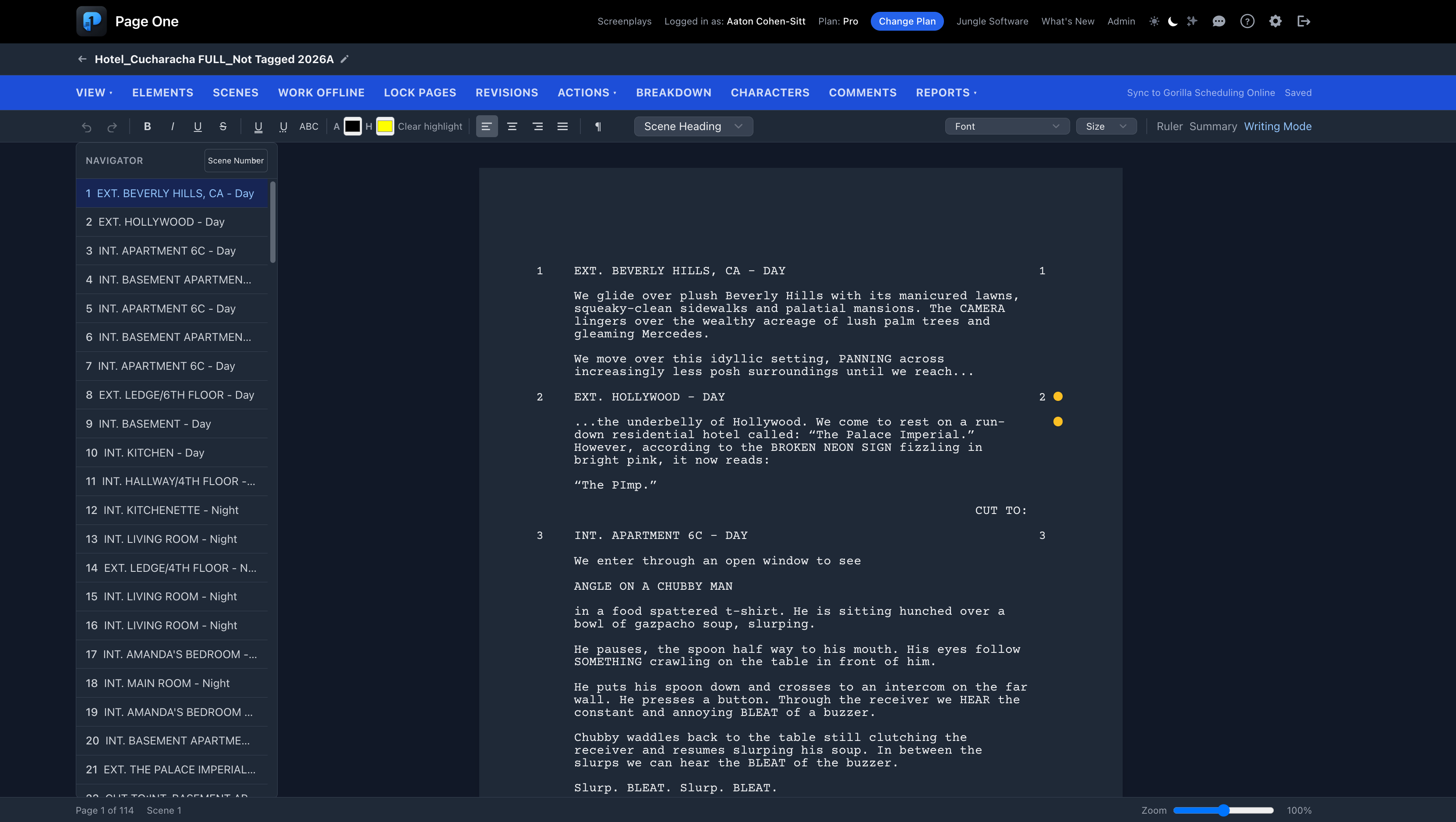
Production preparation begins long before the first tag. A cleanly formatted screenplay gives everyone the same map. Scene headings identify interior or exterior settings and times of day. Character cues distinguish speakers. Action paragraphs tell the crew what must physically happen in each scene.
Page One offers professional screenplay formatting, scene navigation, index cards, sequences, and tools for moving quickly through a long script. If you're new to screenplay elements, see Jungle Software's guide to proper screenplay formatting.
Before breaking down a draft, check for consistent character names, clear scene headings, scenes that have not been accidentally duplicated, and major creative changes still in progress. A cleaner script creates a cleaner initial breakdown.
2. Develop Your Characters Before You Tag Them
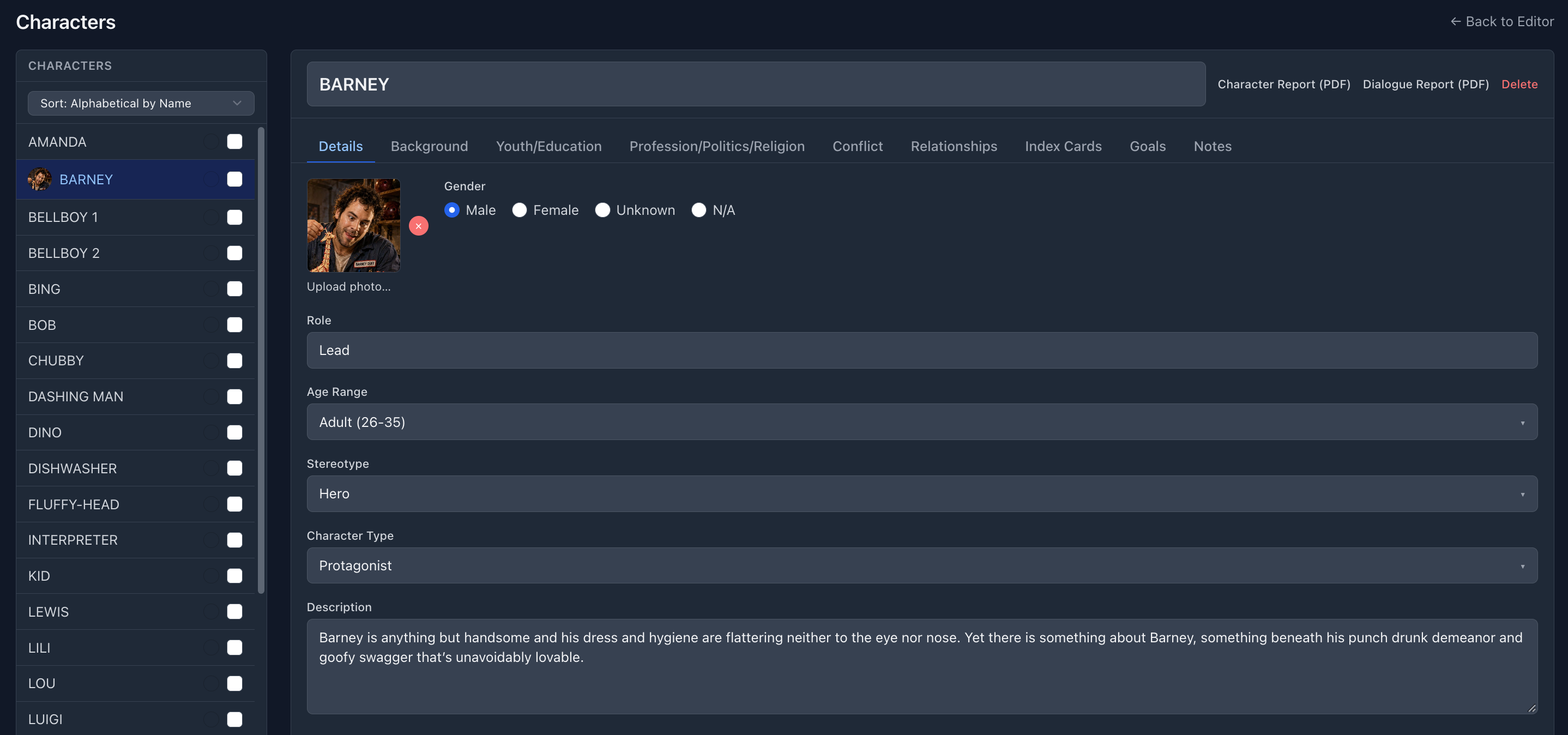
A breakdown tells production who appears in a scene. Character development tells the writer why those characters are there. Good pre-production depends on both.
Page One includes character biographies to organize details such as a character's background and motivations, along with character relationship tools that help track connections across the story. Character and dialogue reports can also bring together a character's scenes or spoken lines for review.
For example, a character who begins the story as an ally may gradually become an antagonist. A secondary character may need distinctive wardrobe, a recurring prop, or a specific location. These choices begin as storytelling, then become practical production requirements.
For more detailed writing exercises, read How to Develop a Main Character and How to Develop Supporting Characters.
4. Tag Your Screenplay Manually in Page One
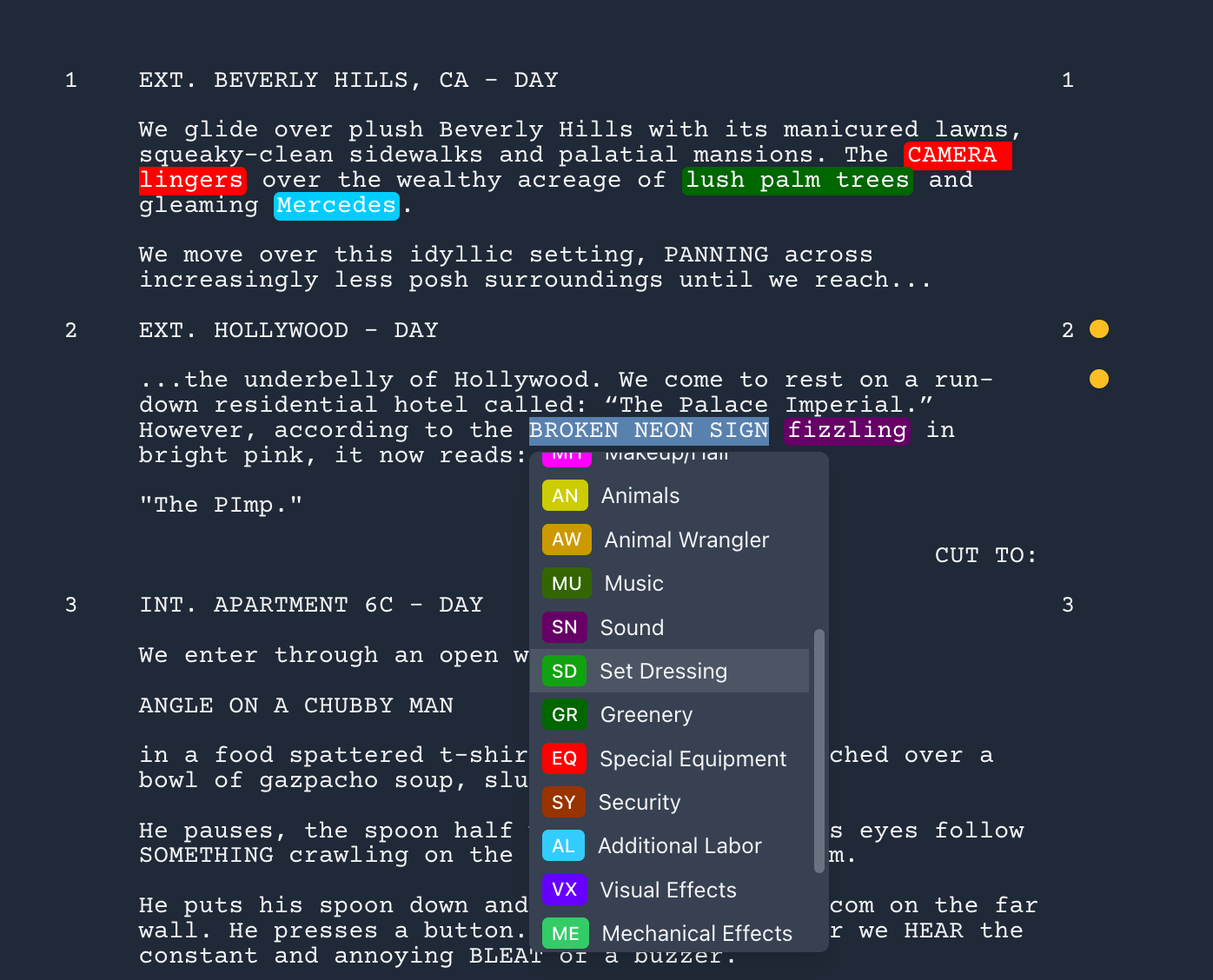
Manual tagging gives the writer or production team precise control over which words become breakdown elements. It is especially useful for unusual requirements, recurring objects, or scenes with subtle details that a fast first pass might miss.
- Open the screenplay and choose a scene.
Read the entire scene for context before assigning elements. - Identify the production requirements.
Look for characters, extras, physical objects, wardrobe, vehicles, animals, stunts, effects, and location-specific needs. - Select the relevant text and assign a breakdown category.
Use Page One's tagging tools to associate the item with the proper category. Add a custom category if your production needs a more specific classification. - Review the completed scene.
Check that the same item is named consistently and that categories make sense for the production. - Continue scene by scene.
Build a breakdown that can be reviewed and carried forward into scheduling.
The goal is not to tag every noun. Tag what production must account for. A cup of coffee in the background may be ordinary set dressing; the one containing a hidden message is a story-critical prop.
5. Use Breakdown Assistant AI for a Faster First Pass
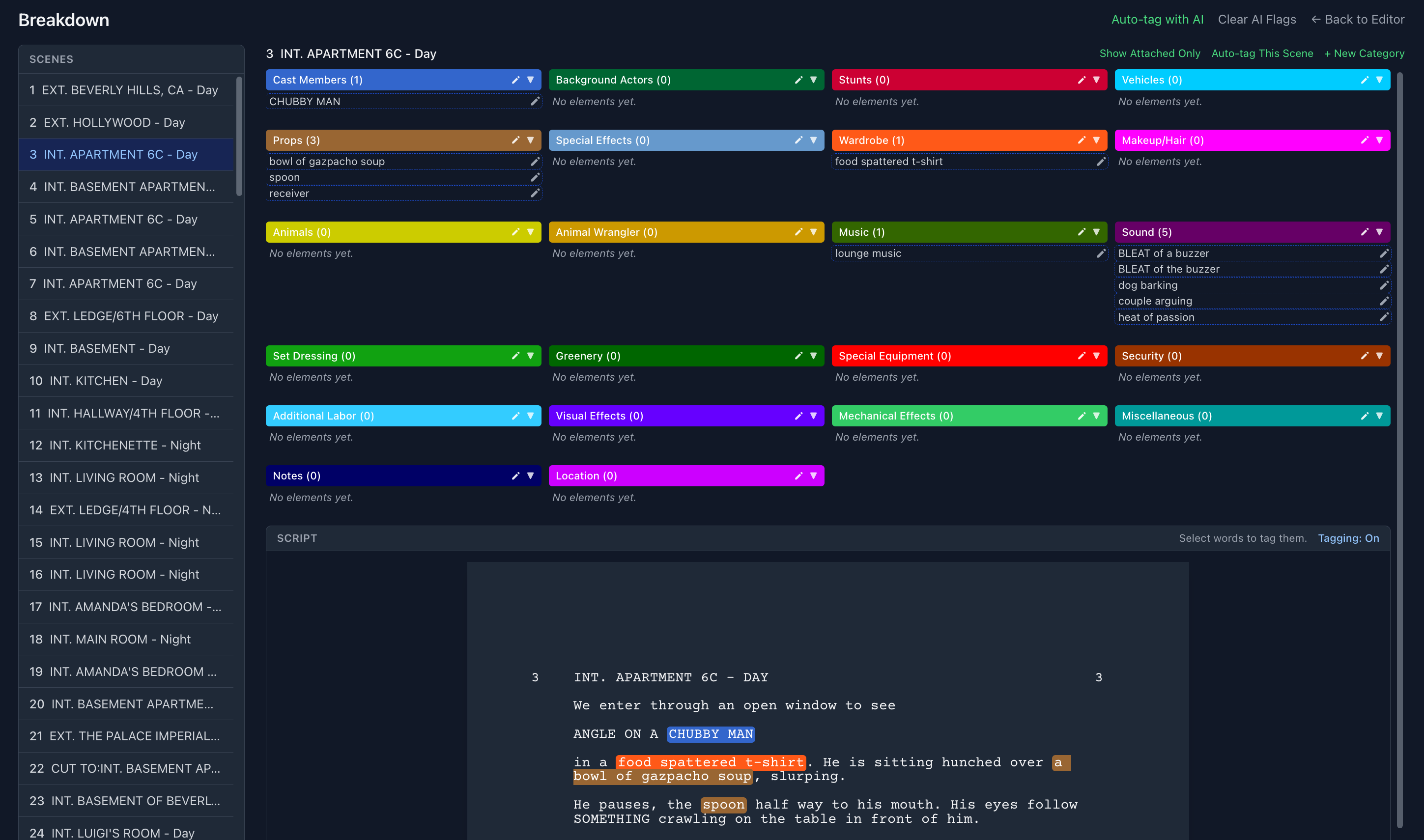
Not every screenplay needs to be tagged word by word from scratch. Breakdown Assistant AI can examine a single scene or an entire script and suggest production elements that deserve attention.
In Page One, the process is designed around human review: the AI generates suggestions, and you review and confirm what belongs in the breakdown. This makes it a useful assistant, not a substitute for an experienced producer or assistant director.
Consider our motel scene. AI might suggest the pickup truck, flashlight, raincoat, neon sign, and rain effect. The production team still determines whether the neon sign is a practical prop, a location feature, or a visual effect, and whether the rain is created on set.
Breakdown Assistant AI is a paid-plan feature in Page One. Confirm current availability and allowances on the Page One product page.
6. Collaborate with Comments and Live Chat
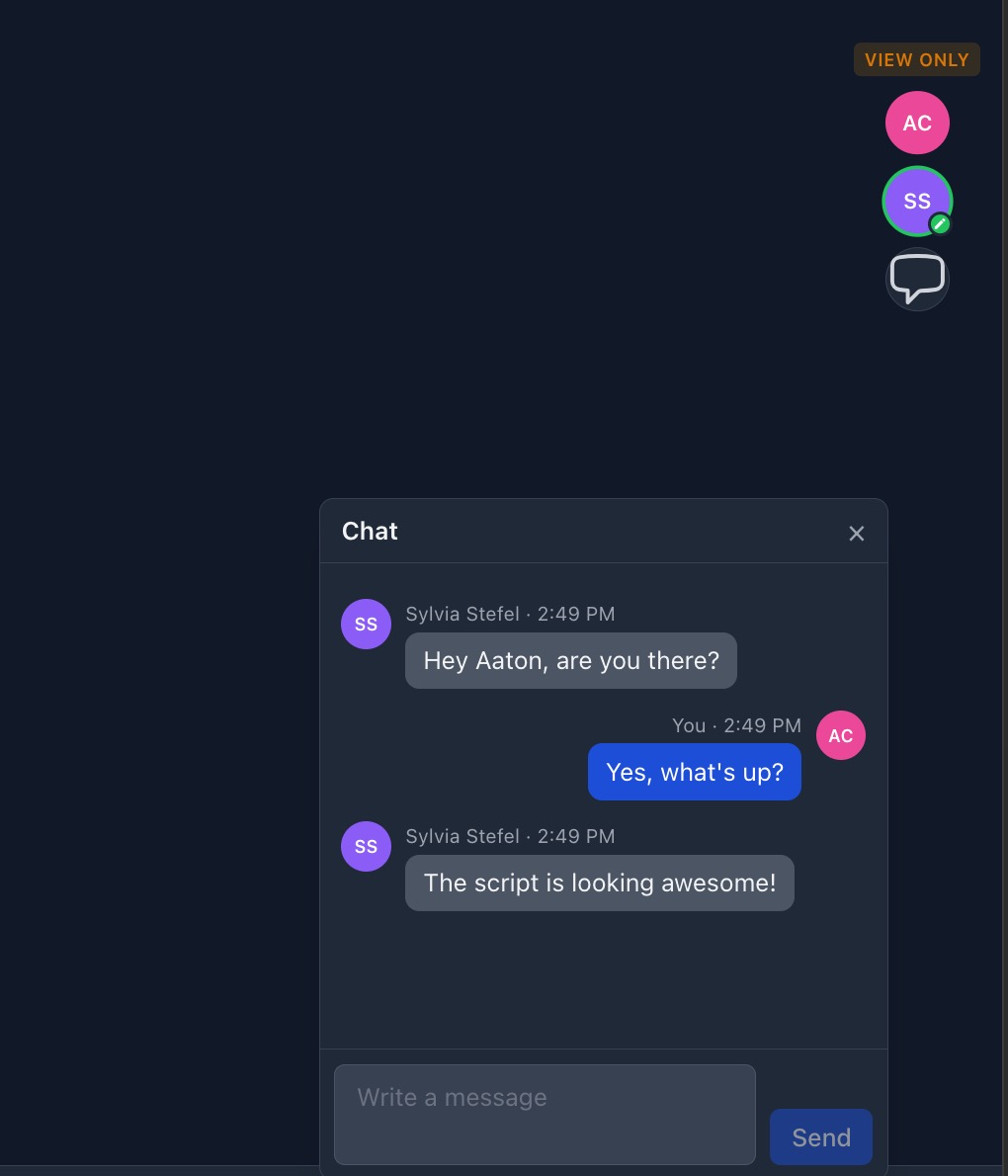
Screenplays evolve through conversations. A writer makes a change, a producing partner asks whether a scene can be consolidated, and a director suggests a different location. Those decisions are easier to track when the discussion sits beside the document rather than disappearing into separate email threads.
Page One supports shared access with Editor and Viewer roles, line-level comments, and live chat for up to two co-writers, including a way to hand off edit mode. That creates a connected writing environment for discussing changes while looking at the script itself.
For example, while reviewing the motel scene, a producer might ask: “Can we move this to the warehouse set?” The writer can discuss the creative impact before revising the scene heading and breakdown.
These are useful distinctions from traditional file handoffs. Final Draft remains an established professional screenwriting choice and offers its own collaboration capabilities, but Page One's integrated chat and linked Gorilla workflow are particularly relevant when writing and production planning happen together.
7. Track Revisions Without Losing the Production Trail
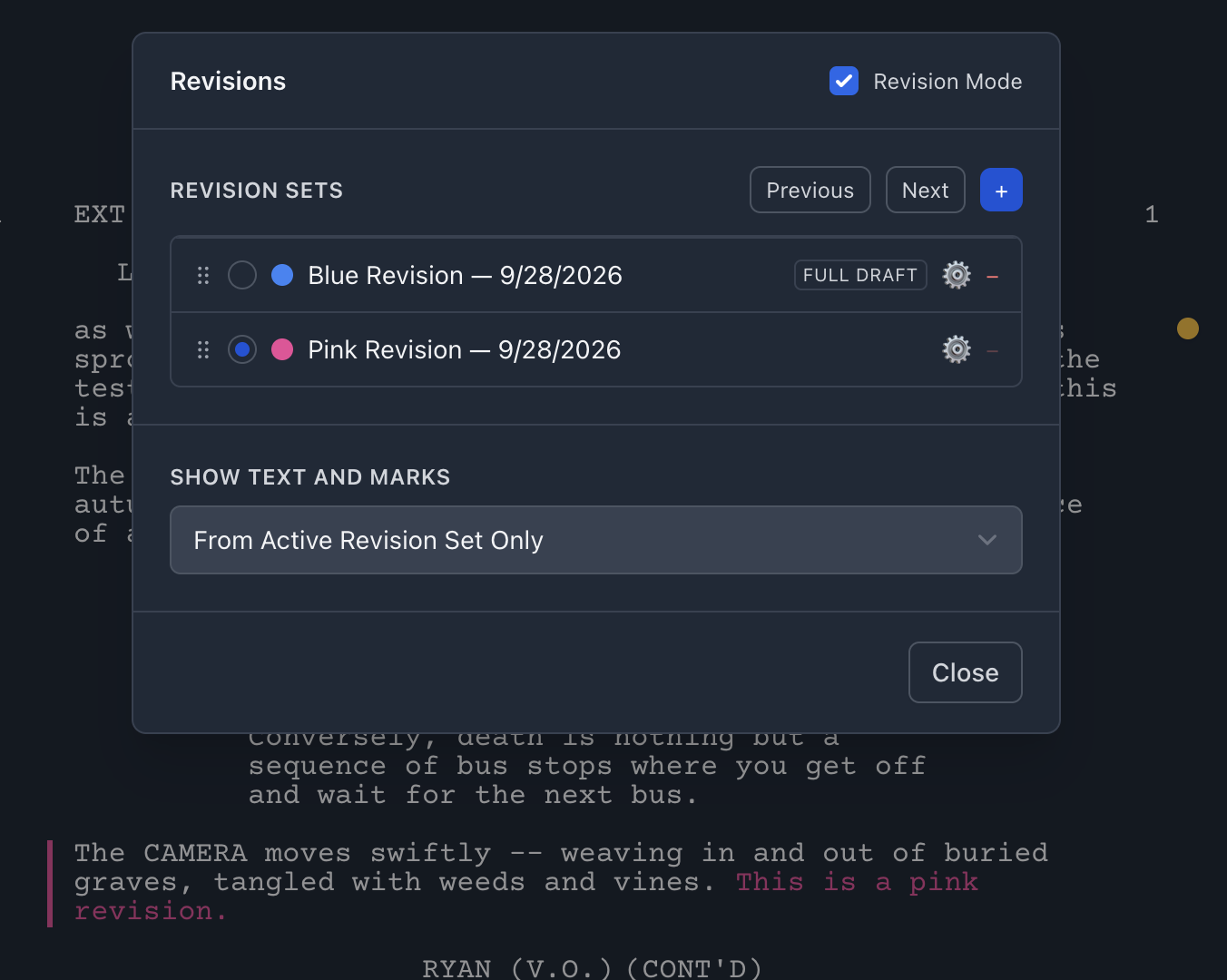
A screenplay rarely stays still once pre-production begins. Dialogue changes, new scenes appear, locations are combined, and a scene may disappear altogether. These changes affect actors, locations, props, the shooting schedule, and sometimes the budget.
Page One includes revision tracking, page locking, scene numbering, and related production-writing tools. These features help distinguish a new version from one that has already been distributed or scheduled. They are especially useful once multiple people depend on an approved draft.
Before changing a production-facing scene, ask what the revision affects. Adding a character may introduce another cast booking. Moving a scene from day to night can affect lighting and crew hours. Changing a vehicle to a train can transform the logistical assumptions.
For a broader overview of what happens after writing, see Guide to the Preproduction Process.
8. Connect Your Screenplay to Gorilla Scheduling Online
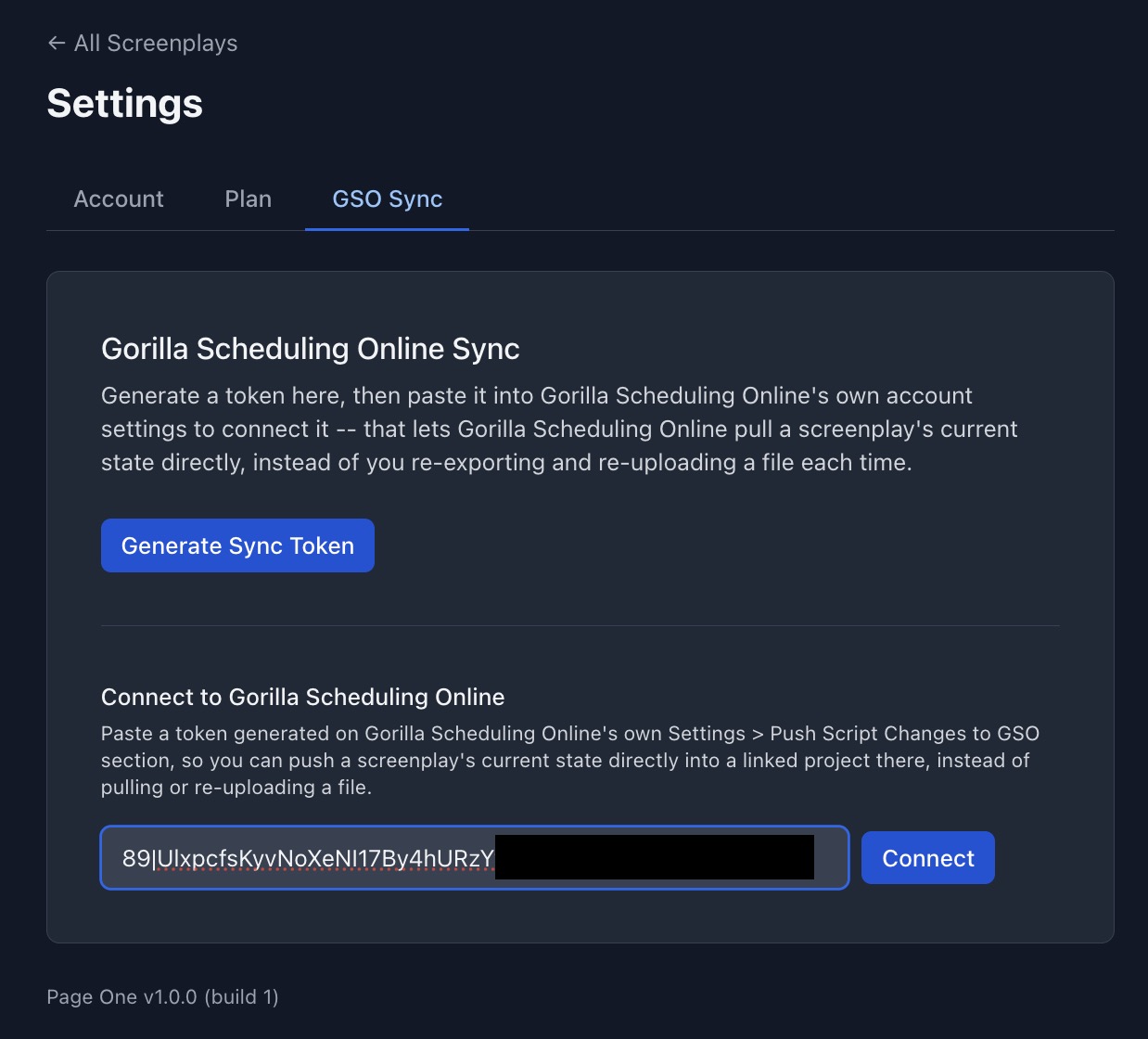
Here is where the production workflow becomes especially valuable. Page One can connect to a Gorilla Scheduling Online project so the script and the schedule do not have to live in completely disconnected systems.
Gorilla Scheduling Online Sync provides two-way, on-demand synchronization. You can push screenplay changes into a linked scheduling project or pull the latest script information back. Because you initiate a sync, this is different from a continuous background update with every keystroke.
That distinction is helpful in real production. A writer may be exploring a change while the assistant director is building a schedule. The team can choose when an updated draft is ready to be synchronized and reviewed, rather than automatically disrupting active scheduling work.
- Prepare the script in Page One.
Review scenes, characters, and breakdown elements. - Connect the screenplay to a Gorilla Scheduling Online project.
Use the available GSO Sync feature and appropriate account access. - Initiate a sync when the draft is ready.
Push changes from Page One or pull the latest linked information when needed. - Review the production impact in Gorilla.
Check breakdown sheets, scene details, and any changes that affect the stripboard or shoot days. - Continue planning the shoot.
Use Gorilla to organize scenes, locations, cast, shoot days, and production reports.
GSO Sync is part of Page One's paid feature set. Collaboration access and other capabilities can also depend on the subscription plan.
Once the script is part of a scheduling project, the production team can refine the breakdown, build the stripboard, organize shoot days, and generate reports. For a more detailed explanation, see Breaking Down Your Script and How to Create a Film Budget.
9. A Practical Screenplay-to-Production Checklist
Before the script leaves the writing stage, run through this checklist with the production team:
- Scene headings, scene numbers, and character names are consistent.
- Character biographies and relationships reflect the current draft.
- Each scene has been reviewed for cast, extras, props, wardrobe, vehicles, effects, and other requirements.
- AI-generated breakdown suggestions, if used, have been checked by a person.
- Repeated elements are named consistently across scenes.
- Changes to locations, scenes, and cast have been discussed with relevant collaborators.
- The production-facing revision has been identified and approved.
- The linked Gorilla Scheduling Online project has been synchronized at the appropriate handoff point.
- The scheduling team has reviewed the latest script changes for their impact on the breakdown and stripboard.
No single checklist guarantees a problem-free shoot. But a production that catches a missing vehicle, extra, or rain effect during prep is already in a better position than one discovering it at call time.
Which Tool Fits Which Stage?
| Stage | Recommended application | Main purpose |
|---|---|---|
| Write and revise | Page One | Screenplay formatting, character development, collaboration, revisions |
| Tag the screenplay | Page One and Breakdown Assistant AI | Identify production elements manually or with reviewed AI suggestions |
| Break down and schedule | Gorilla Scheduling Online | Breakdown sheets, stripboards, shoot days, cast, locations, reports |
| Budget the production | Gorilla Budgeting Online | Production costs, accounts, fringes, estimates and budget reports |
| Plan individual shots | Shot Monkey | Storyboards, camera setups, visual references and shot lists |
From the First Page to the First Day of Shooting
A strong screenplay deserves a strong production plan. Develop the story, collaborate with your team, review production elements, and move into scheduling with Page One and Gorilla Scheduling Online.
Editorial note: Feature availability depends on the current Page One plan. This guide describes the production workflow and deliberately avoids hard-coding interface button locations that may change as the app evolves.